



JB
Muke Johnbaptist
Go (Golang) expert · Creator of the Grit Framework
Learning · Networking
Networking, Explained From Scratch
A Visual Guide
From the cable on your desk to VPNs, TLS, and load balancers — every core concept, illustrated, with plain-language analogies and real examples.
Covers: Ethernet & Wi-Fi · IP & Subnets · Routing & BGP · TCP/UDP · TLS & VPN · DNS & HTTP · Load Balancing
01
Ethernet & Wi-Fi
Two roads to the same destination: getting data from one device to another.
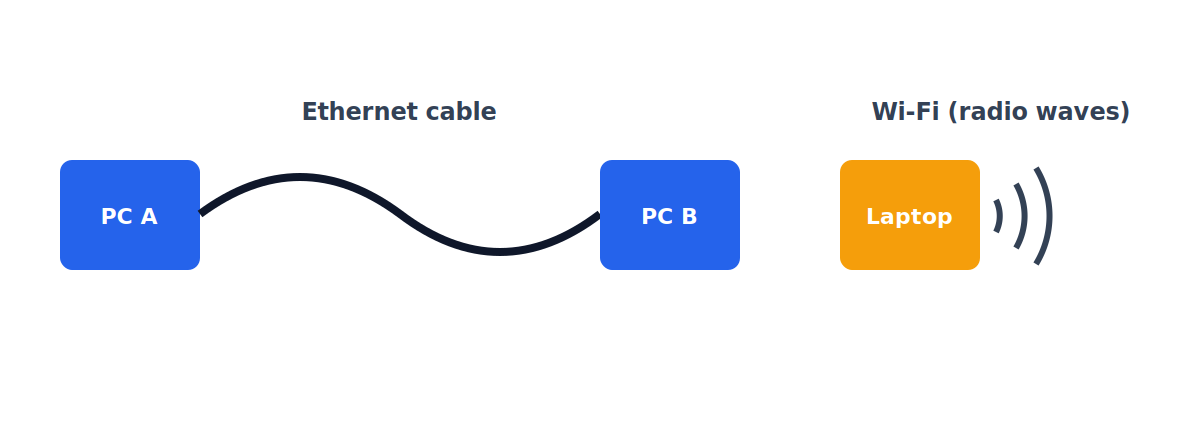
Before two computers can talk, they need a physical medium to move data across. Ethernet uses a physical cable — copper or fiber optic. Wi-Fi does the exact same job, but sends the data through the air as radio waves instead.
🟡 Analogy
Think of it like talking to a friend: Ethernet is calling them on a landline connected by a physical wire. Wi-Fi is shouting across the room — same message, no wire needed, just open air.
🟢 Example
Your gaming PC plugged into the router with a cable gets a rock-solid, low-latency Ethernet connection. Your phone connecting to the same router from the couch uses Wi-Fi instead.
02
MAC Address
Every device's built-in, unchangeable name tag.
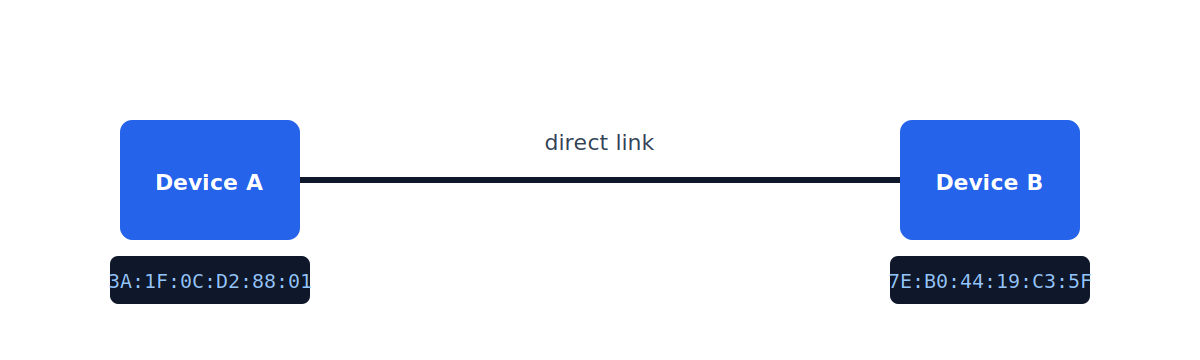
Once two devices are physically connected, they still don't know who's on the other end. A MAC address is a unique hardware identifier burned into every network device at the factory — it's how devices recognize each other on a local link.
🟡 Analogy
A MAC address is like your fingerprint — permanent, unique to you, but only useful if the person checking it is standing right next to you. It doesn't help someone find you from across the country.
03
Switch
The traffic cop for devices on the same network.
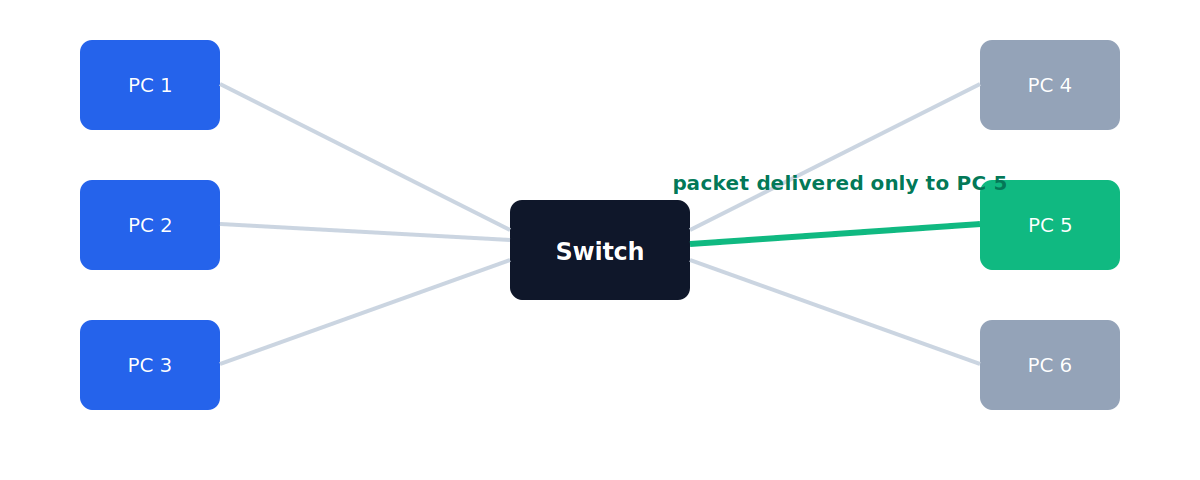
A switch connects many devices on the same local network. It reads the destination MAC address on every incoming request and forwards it only to the correct device — instead of blasting it to everyone.
🟡 Analogy
A switch is like a mail sorter in an office building — it reads the name on each envelope and drops it directly at the right desk instead of announcing it over the office intercom for everyone to hear.
🟢 Example
An 8-port switch in a small office lets 8 computers, printers, and a Wi-Fi access point all talk to each other on the same local network.
04
IP Address
A logical address that works across the entire internet, not just next door.
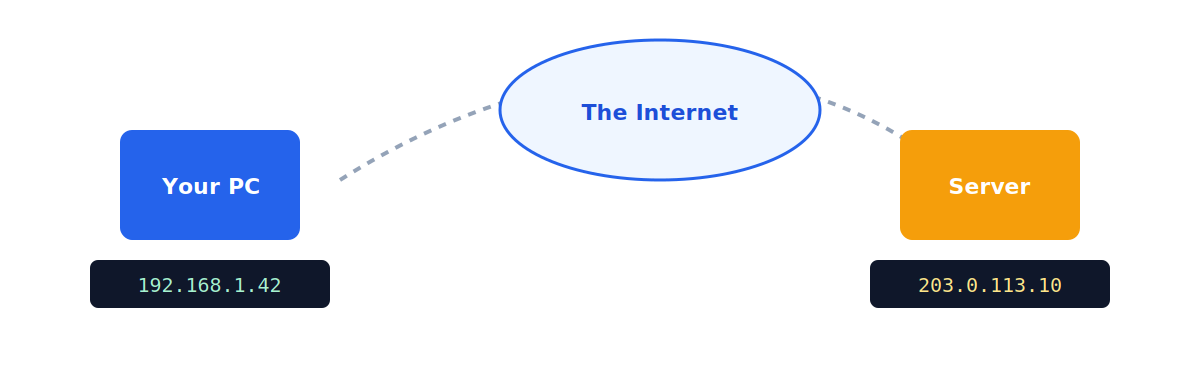
An IP address is a logical address assigned to a device so it can be identified across different networks — not just the one it's physically plugged into. Unlike a MAC address, an IP address can change over time.
🟡 Analogy
If a MAC address is your fingerprint, an IP address is your postal address. It can change when you move house, and it's what lets someone across the country send you a letter.
🟢 Example
Your home router might have a private IP like `192.168.1.1` for your home network, and a separate public IP like `82.14.55.6` that the rest of the internet sees.
05
Static IP vs. DHCP
Two ways to get an IP address: type it yourself, or let a server hand it to you.
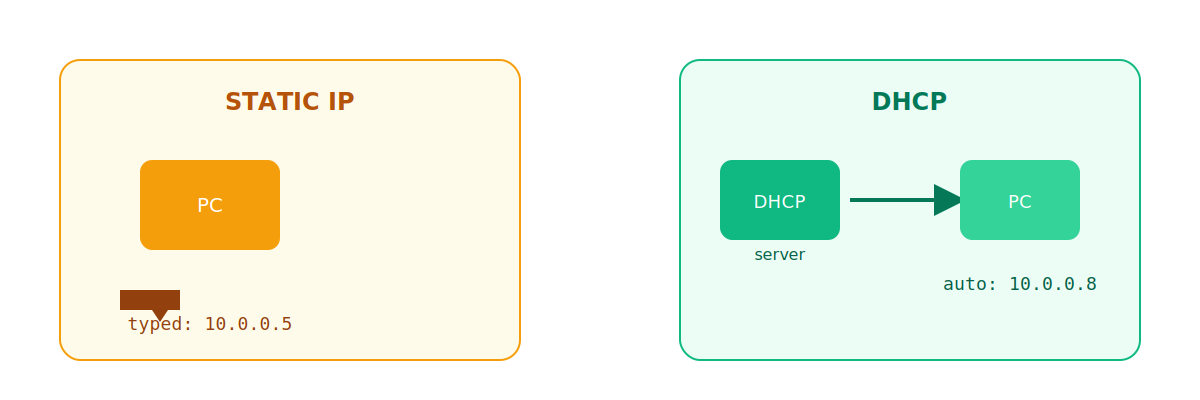
Static IP: you manually type an IP address into your device's network settings. It never changes unless you change it yourself.
DHCP (Dynamic Host Configuration Protocol): when your device joins a network, a DHCP server automatically assigns it an IP address — no manual setup needed.
🟡 Analogy
Static IP is like reserving the exact same parking spot every single day. DHCP is like a valet who hands you whichever open spot is available the moment you arrive.
🟢 Example
A company web server usually gets a static IP so it's always reachable at the same address. Your phone connecting to different Wi-Fi networks throughout the day gets a fresh IP from DHCP each time.
06
Subnet
Defining how big — or how small — your local network is.
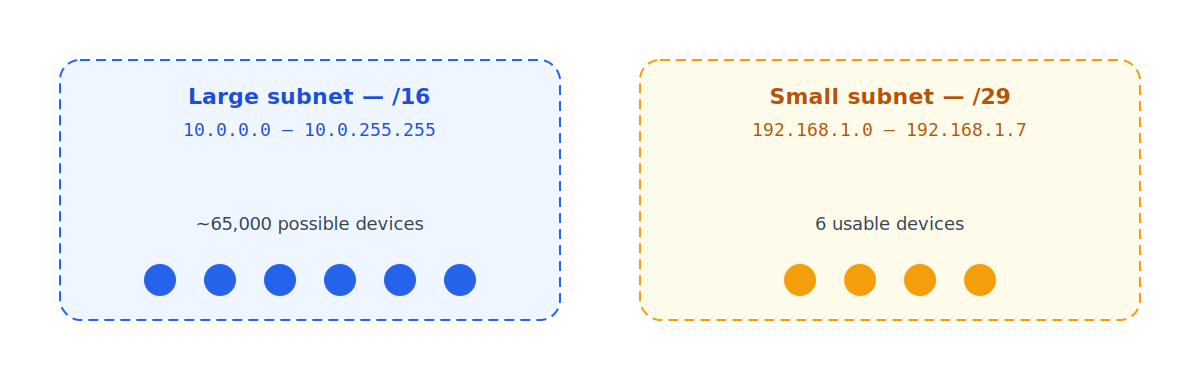
A subnet defines the size of your local network: how many devices can exist within it before you need to route traffic elsewhere. Networks can be huge (an entire company) or tiny (a single home).
🟡 Analogy
A subnet is like the size of a building. A skyscraper (/16) can hold thousands of apartments (devices); a small duplex (/29) can only hold a couple.
🟢 Example
A home network is often a small subnet like `192.168.1.0/24` (254 usable addresses), while a large company's office network might be a much bigger subnet to fit thousands of employee devices.
07
Router
The exit door of your local network.
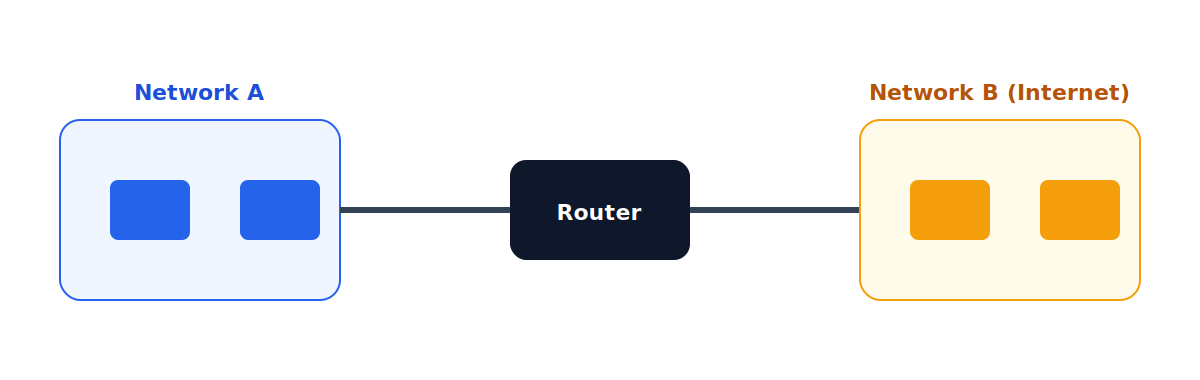
A router connects different networks together. It looks at a packet's destination IP address and decides where to forward it next — it's how traffic leaves your local network and reaches the wider internet.
🟡 Analogy
A router is like the front door of your house connecting to the street outside. Everything inside the house can move freely, but the router decides what goes out and how it gets there.
🟢 Example
Your home Wi-Fi router connects your local devices (phones, laptops, smart TV) to your internet service provider, which then connects to the rest of the internet.
08
Default Gateway
"I don't know where this goes — send it to the gateway."
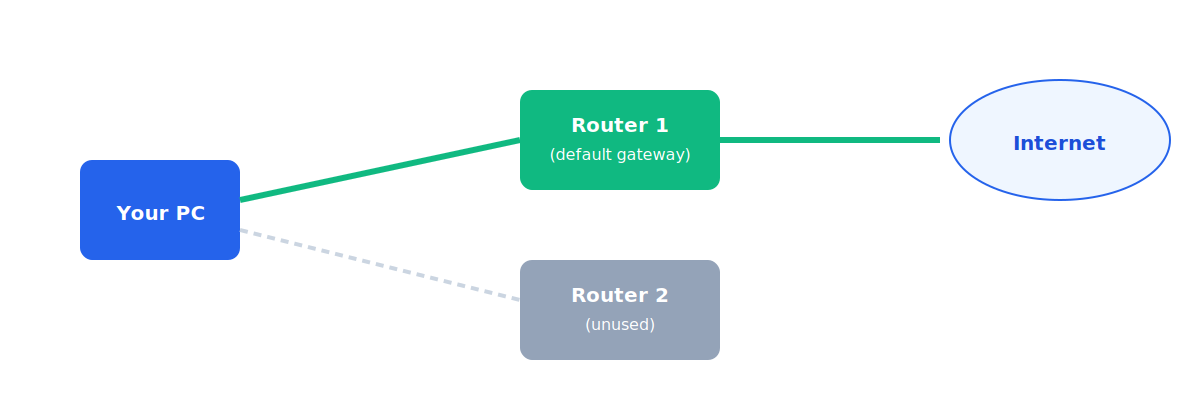
When a network has multiple routers, a device needs to know which one to use by default. The default gateway is that designated router — the one your device sends traffic to whenever it doesn't know a more specific path.
🟡 Analogy
It's like living on a street with two exits, but you always use the same one out of habit because it's the one that gets you to the highway. That habitual exit is your default gateway.
🟢 Example
On a typical home network, your router's own address — like `192.168.1.1` — is set as the default gateway for every device connected to it.
09
Routes: Static, OSPF & BGP
The rules that tell a router where traffic should go next.
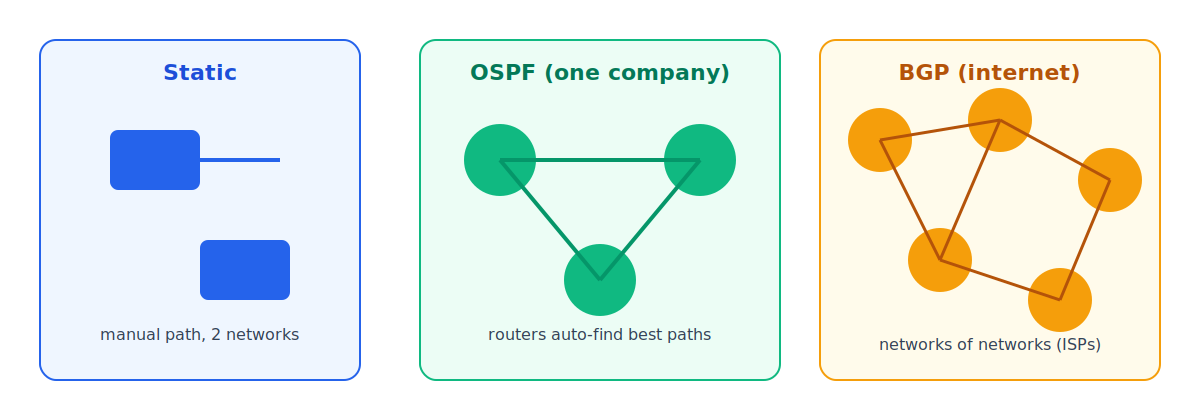
A route is a rule that tells a router where to forward traffic based on its destination. There are three levels of scale:
| | Description | |---|---| | Static Routing | You manually configure "to reach this network, use this path." Simple, but doesn't scale past a couple of networks. | | OSPF | A routing protocol that lets routers inside the *same organization* automatically discover the best paths to each other. | | BGP | Border Gateway Protocol — used by large companies and ISPs to exchange routing information *between* each other. It's essentially what makes the internet work. |
🟡 Analogy
Static routing is you memorizing the one route to your friend's house. OSPF is a GPS that knows every road inside your city. BGP is the agreement between different countries' postal services on how to hand off international mail.
🟢 Example
A small office might statically route traffic between two branch offices. A large enterprise uses OSPF to connect dozens of internal routers automatically. Meanwhile, every internet provider on Earth uses BGP to tell each other "these IP ranges are reachable through me."
10
Ping & ICMP
"Are you there?" — the simplest network test there is.
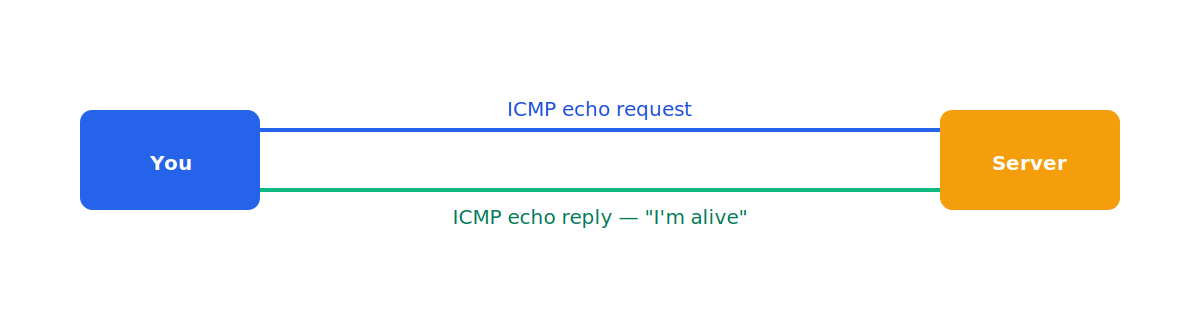
Ping sends a small packet to a destination and waits for a response. If the other side replies, you know it's alive and reachable. Ping runs on top of ICMP (Internet Control Message Protocol), a protocol built specifically for network troubleshooting.
🟡 Analogy
Ping is like shouting "Hello, can you hear me?!" across a canyon and waiting for the echo back. If it comes back, you know someone's there.
🟢 Example
Running `ping google.com` in a terminal tells you whether your internet connection can reach Google's servers, and roughly how long the round trip takes.
11
TCP vs. UDP
Reliable and careful, or fast and reckless — pick your protocol.
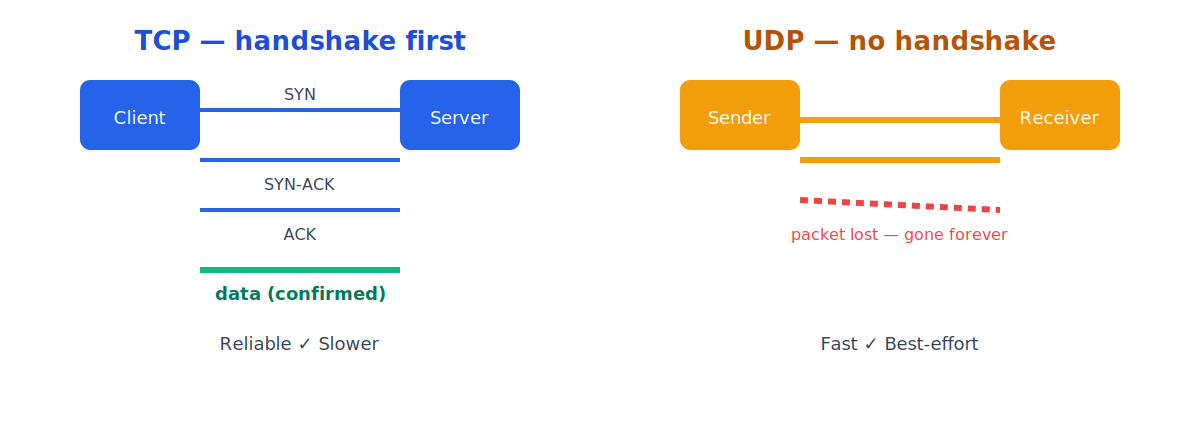
TCP establishes a connection before sending data and guarantees every packet arrives — resending anything that gets lost. It's reliable, but slower. UDP just fires packets off with no handshake and no guarantee; if one is lost, it's gone forever. It's faster because it never waits for confirmations.
🟡 Analogy
TCP is like sending a registered letter — you get a receipt confirming it arrived, and if it doesn't, it's resent. UDP is like shouting instructions to someone across a crowded room — fast, but if they miss a word, it's simply gone.
🟢 Example
Downloading a file uses TCP — every byte must arrive intact or the file is corrupted. A live video call uses UDP — a dropped frame is barely noticeable, but waiting for a resend would cause noticeable lag.
12
Ports
The IP gets you to the device. The port gets you to the right app.
A port is a number that tells a device which application should handle incoming data. This is how your computer can browse the web and be on a video call at the same time — each application listens on its own port.

🟡 Analogy
If the IP address is an apartment building's street address, ports are the individual apartment numbers. The mail carrier (the network) gets you to the right building; the port number gets your package to the right door.
🟢 Example
Web traffic normally uses port 443 (HTTPS) or 80 (HTTP), while an SSH connection into a server typically uses port 22.
13
Firewall
The bouncer deciding what traffic gets in — and what gets out.
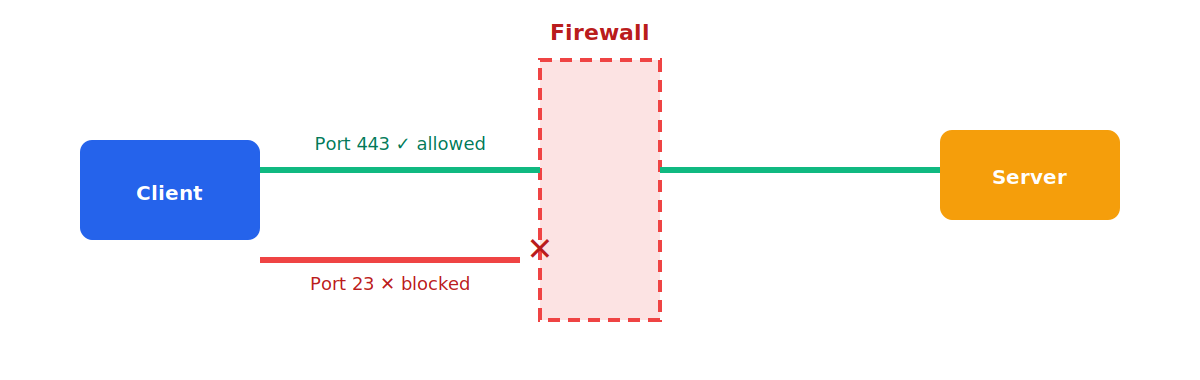
A firewall controls what traffic is allowed in and out of a network. It can block specific ports, IP addresses, or entire types of traffic based on a set of rules.
🟡 Analogy
A firewall is like the security desk in an office lobby, checking every visitor's ID against a guest list before letting them onto a specific floor.
🟢 Example
A company firewall might allow outbound traffic on port 443 (secure web browsing) for all employees, but block port 23 (old, insecure Telnet) entirely.
14
TLS / SSL
Locking the connection so no one in the middle can read your data.
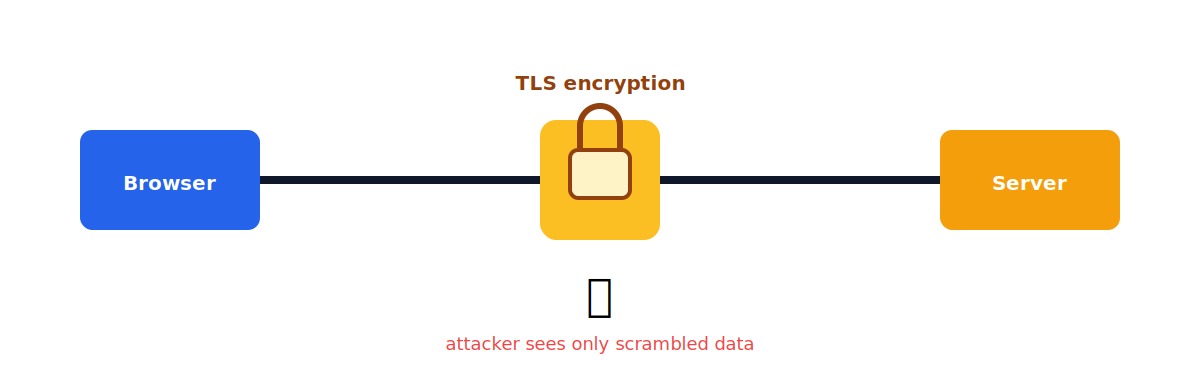
TLS (Transport Layer Security) encrypts the connection between two devices so that nobody in between can read or tamper with the data. You've probably heard of SSL — TLS is simply its modern, more secure successor; same idea, newer version.
🟡 Analogy
Sending data without TLS is like mailing a postcard — anyone handling it along the way can read it. TLS is like sealing that message in a locked box that only the sender and the intended recipient have the key to.
🟢 Example
When you see the padlock icon next to a website's address, that connection is protected by TLS — your passwords and payment details can't be read by anyone snooping on the network in between.
15
VPN
Not just one connection — an entire encrypted tunnel.
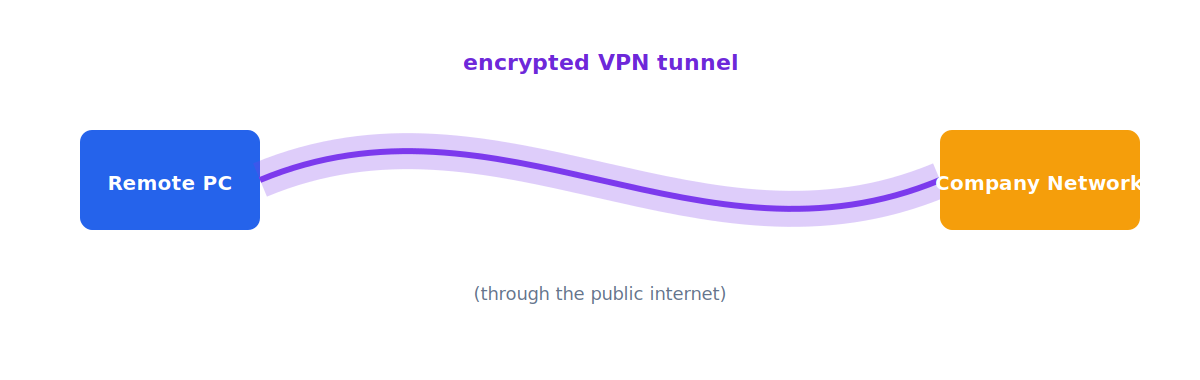
A VPN (Virtual Private Network) creates an encrypted tunnel between your device (or network) and another one. While TLS protects a single connection, a VPN protects everything passing between the two ends — nobody in the middle can see what you're sending or receiving.
🟡 Analogy
If TLS is a locked box for one letter, a VPN is an armored, private underground tunnel connecting two buildings — everything that travels between them, not just one message, stays hidden and protected.
🟢 Example
An employee working from a coffee shop connects to a company VPN so their laptop appears to be on the office network, and all traffic — email, internal tools, file shares — stays encrypted from prying eyes on the coffee shop Wi-Fi.
16
DNS
Translating names humans remember into addresses machines use.
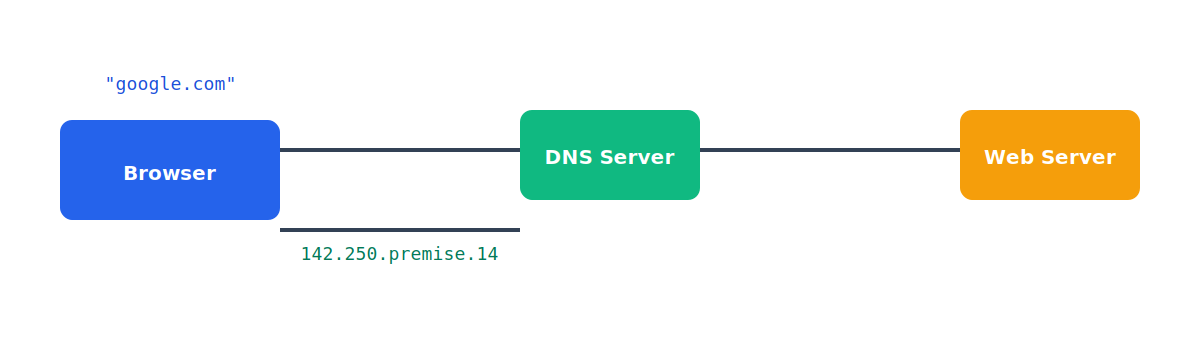
You don't type an IP address to visit a website — you type a name, like `google.com`. DNS (Domain Name System) translates domain names into IP addresses so you never have to memorize a string of numbers.
🟡 Analogy
DNS is like a phone book (or your phone's contacts list). You remember your friend's name, not their phone number — you just tap the name, and your phone looks up the number for you behind the scenes.
🟢 Example
Typing `anthropic.com` in your browser triggers a DNS lookup that resolves it to a numeric IP address, which your browser then connects to.
17
HTTP & HTTPS
The language your browser speaks to request and receive web pages.
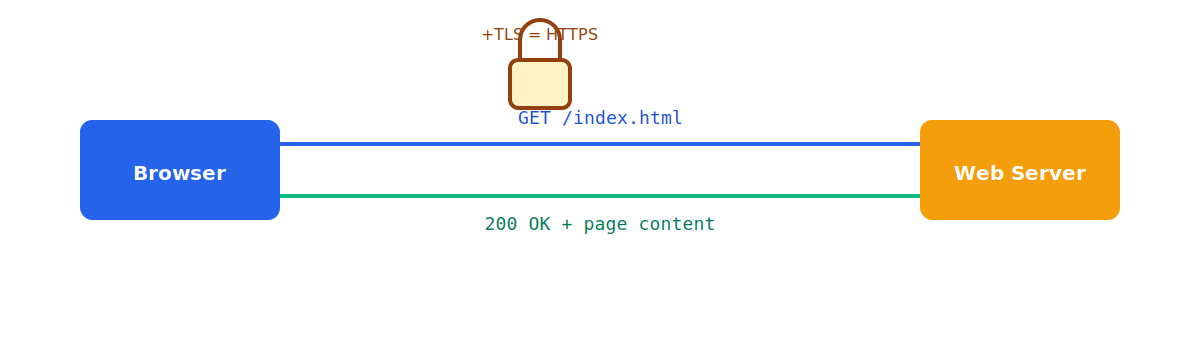
HTTP is the protocol your browser uses to request and receive web content — "give me this page," "here it is." Combine HTTP with TLS encryption, and you get HTTPS — the same conversation, just locked and private.
🟡 Analogy
HTTP is like ordering food at a counter out loud — anyone nearby can hear your order. HTTPS is like whispering that same order privately so only the cashier understands it.
🟢 Example
Almost every modern website uses HTTPS by default — you'll see it in the address bar as `https://`, along with a padlock icon confirming the connection is encrypted.
18
Load Balancer
Spreading the crowd across multiple doors instead of overwhelming one.
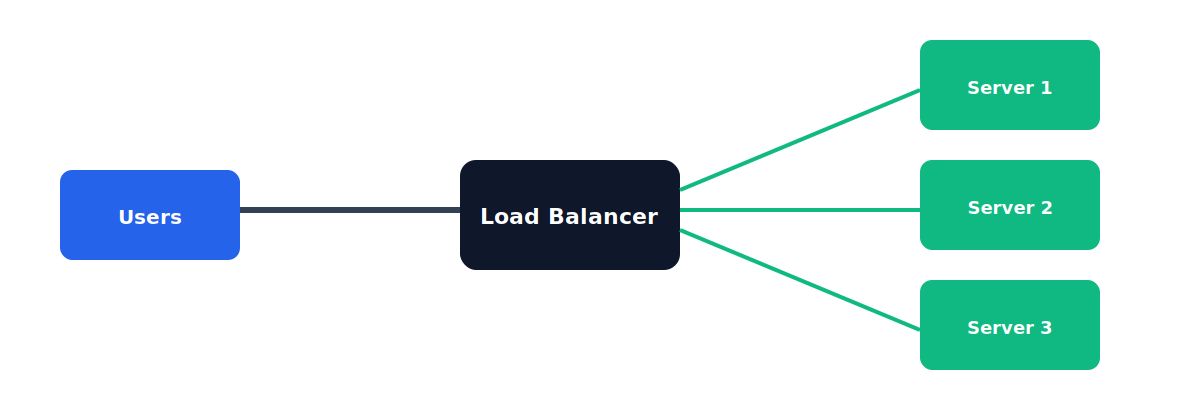
A load balancer sits in front of multiple servers and distributes incoming requests across them. This prevents any single server from being overloaded and keeps the whole service running smoothly, even under heavy traffic.
🟡 Analogy
A load balancer is like a host at a busy restaurant directing incoming guests to whichever table is free, instead of letting everyone crowd around a single table while the rest sit empty.
🟢 Example
A popular shopping website during a big sale uses a load balancer to spread millions of visitors across dozens of identical backend servers, so the site stays fast and doesn't crash under the surge.
Putting it all together
Every concept in this guide builds directly on the one before it:
- A cable or Wi-Fi carries the signal. - A MAC address identifies devices locally, and a switch connects several of them. - An IP address (assigned statically or via DHCP, sized by a subnet) identifies a device globally. - A router and its default gateway move traffic between networks, guided by routes — static, OSPF, or BGP. - Ping confirms a destination is reachable; TCP or UDP then carries the actual data to the right port. - A firewall decides what's allowed through; TLS and VPNs keep the data private. - DNS turns names into addresses; HTTP/HTTPS carries the actual web request; and a load balancer keeps popular services running at scale.
> 🔵 A good habit > Whenever you meet a new networking term, ask yourself: why do I need this, and what problem does it solve? That question is the fastest way to make any of these concepts stick.